Social Engineering Content Detected: How to Fix GSC Security Warnings
Discovering a “Social Engineering Content Detected” security warning inside your Google Search Console (GSC) account can be incredibly stressful. When Google flags a website for hosting deceptive or social engineering content, it doesn’t just lower your rankings—it actively blocks your traffic by displaying a bright red warning screen to users before they can access your site.
To recover your organic visibility and ensure your domain remains trusted by search algorithms, you must address the issue using precise technical steps.
This guide details exactly why Google triggers these safety flags, how to audit your site architecture, and the precise steps to clean your domain and successfully request a review.
What is Social Engineering & Deceptive Content?
In the context of search engine health, social engineering refers to web content designed to trick visitors into performing actions that compromise their security. This typically involves manipulation tactics aimed at stealing sensitive personal details, including passwords, credit card credentials, or phone numbers.
While digital marketers occasionally analyze aggregated consumer preferences to run compliant, hyper-targeted ad profiling campaigns, search engine filters strictly flag fraudulent, deceptive, or compromised web structures.
The Three Main Pillars of Deceptive Content
According to Google’s Search Service Policies, a page triggers a social engineering alert if it displays any of the following characteristics:
- Deceptive Brand Mimicry: The page visually mimics a trusted entity (such as a bank, courier service like DHL, or government login portal) to trick a user into entering credentials.
- False Urgency Overlays: The content uses pop-ups or banners falsely claiming the user’s device is infected with malware or requires an immediate software update.
- Misleading Download Hooks: The site displays download buttons that actually trigger malicious background executables instead of the promised file asset.
Modern Exploits Triggering GSC Security Warnings
Older security articles often reference outdated technology vulnerabilities like Adobe Flash or basic text-based email phishing. Today, malicious threat actors use highly sophisticated, automated techniques to inject deceptive content into vulnerable sites:
| Attack Vector | How It Works | Impact on Your Website |
|---|---|---|
| AI-Generated Phishing Scripts | Hackers use automated LLMs to generate hyper-realistic, dynamic text fields on your site that mimic official payment gateways. | Visitors are tricked into entering financial details on what looks like your secure page. |
| Malicious Plugin Exploits | Attackers exploit unpatched vulnerabilities in CMS extensions (WordPress, Shopify, or Magento) to insert hidden iframe code. | Invisible fields capture session cookies and route user data directly to remote servers. |
| Ad-Network Script Hijacking | Low-quality or unverified third-party ad networks push rotated, deceptive ads onto your layouts dynamically. | Googlebot flags your page for social engineering, even though you didn’t add the bad code yourself. |
Step-by-Step Technical Guide: Fixing the Warning in GSC
If your site has been flagged, follow this verified remediation sequence to clear your domain’s reputation.
Step 1: Isolate the Flagged URLs in Search Console
Do not attempt to clean your site blindly. Let Google’s diagnostic data point you directly to the source:
- Log into your Google Search Console dashboard.
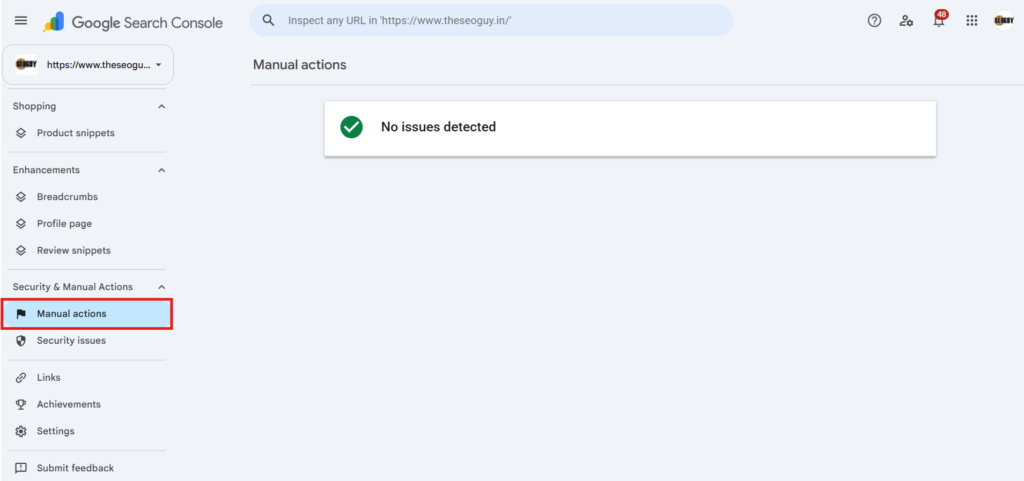
- Scroll to the bottom of the left sidebar navigation menu, open the Security & Manual Actions tab, and click Security Issues.
- Review the specific sample URLs provided by Google. Note down whether the classification indicates deceptive history, malware injections, or harmful downloads.
Step 2: Audit Third-Party Resources & Ad Networks
If the flagged URL looks completely clean on your primary editor, a compromised third-party script is likely serving deceptive assets dynamically.
- Inspect Rotated Ads: Unsafe ad networks rotate their visual outputs to evade detection. Use the GSC URL Inspection Tool to fetch and render your page, analyzing both the mobile and desktop source views to see what external scripts are loading.
- Review External Dependencies: Temporarily disable unverified embedded elements, financial widgets, or external tracking pixels that lack strict end-to-end encryption frameworks.
Step 3: Sanitize Your CMS Codebase and Forms
- Scan for Header/Footer Injections: Open your core theme files (such as
header.phporfooter.php) and inspect the code for malicious javascript injections or strange iframe strings. - Verify Form Destination Actions: Inspect every data collection form on your website. Ensure all submit actions route data exclusively to your secure database endpoints over an encrypted HTTPS connection.
- Fix Unrendered Shortcodes: Ensure your system plugins are actively processing form structures. Unrendered plain-text code strings appearing on the frontend can occasionally flag quality filters.
Step 4: Submit a Formal Security Reconsideration Request
Once your site code is completely sanitized and the deceptive elements have been completely removed:
- Return to the Security Issues tab in GSC.
- Click the Request Review button.
- Provide a highly detailed, technical explanation of your fixes.
Example Submission Text:“We have conducted a thorough security audit of the flagged pages. We identified and removed an unauthorized third-party script exploit within our theme directory, updated all core CMS plugins, and verified that all site forms submit safely to our primary secure server. Please re-evaluate our domain security status.”
Google’s automated security teams generally process these requests within 48 to 72 hours. Once verified, the warning screens will be lifted and your URLs will return to the active indexing queue.
Frequently Asked Questions – Social Engineering & Deceptive Content
Why does Google Search Console say “Social Engineering Content Detected” when my site is clean?
This usually occurs when your site has been compromised by an external hack or an unsafe third-party ad script. Even if your main article text is completely safe, an attacker may have injected hidden forms or malicious code into your database templates that only show up under specific conditions or to search bots.
Can an outdated plugin trigger a social engineering warning?
Yes. Outdated plugins often contain known security vulnerabilities. Hackers use automated tools to find these vulnerabilities, break into your site, and inject deceptive redirect scripts or phishing layouts. Keeping all core software and plugins updated is critical for maintaining clean indexation.
How long does it take for Google to remove the red warning screen from my site?
Once you submit a formal review request through GSC, Google’s security systems typically re-evaluate the code within 2 to 3 days. If they confirm that all deceptive elements, malicious scripts, and bad ad loops have been removed, the red warning screen will be stripped from your URLs immediately.
Will a social engineering warning permanently hurt my website’s SEO rankings?
No. While your traffic will drop significantly while the warning screen is active, Google treats security issues as temporary issues. Once you fix the code and pass the review, your site will be restored to the index and your previous organic rankings will steadily recover.
Secure Your Search Visibility with TheSEOGuy
Don’t let technical errors or security glitches compromise your hard-earned search rankings. If your business is struggling with Google Search Console errors, persistent indexing issues, or security warnings, let our technical experts handle the heavy lifting.
Partner with India’s Premier SEO Specialists. Contact TheSEOGuy Today! for a comprehensive technical audit, and let’s secure your search performance!
Meet the Author: Why Trust TheSEOGuy?
This guide was created by Ravi, Lead Technical SEO Consultant at TheSEOGuy. With over a decade of hands-on experience resolving complex Google Search Console technical glitches, handling critical security breaches, and optimizing enterprise architectures across India and global markets, Ravi specializes in recovering penalized web properties.
Our team manages complex server deployments daily, ensuring that your technical SEO strategy aligns perfectly with Google’s strict Security and Quality Rater Guidelines.
Discover more from TheSEOGuy
Subscribe to get the latest posts sent to your email.